

Content Hub
Expert tips & top picks
We've got you covered with expert insights and trusted recommendations to make your next purchase easy.
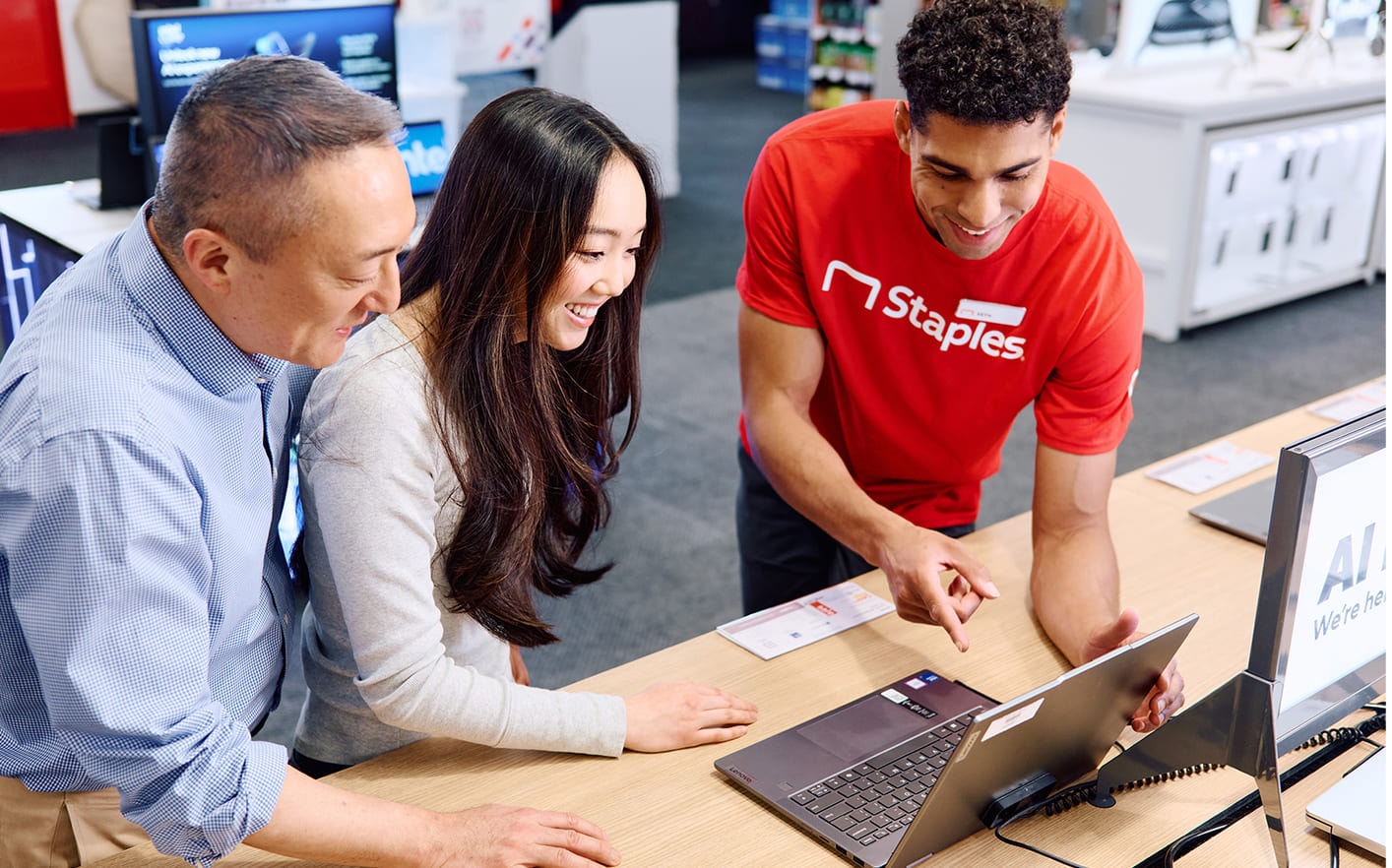
Shop our top rated products
Page 1 of 5

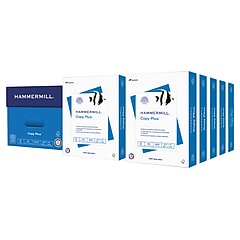
Price is $48.99, Regular price was $81.99, You save 40%
1
1
2
3
4
5
6
7
8
9
10
11
12
13
14
15
16
17
18
19
20
21
22
23
24
25
26
27
28
29
30
Over 30

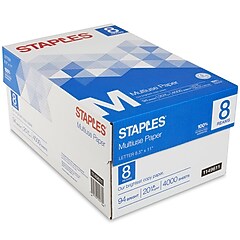
Price is $41.99, Regular price was $70.59, You save 40%
1
1
2
3
4
5
6
7
8
9
10
11
12
13
14
15
16
17
18
19
20
21
22
23
24
25
26
27
28
29
30
Over 30

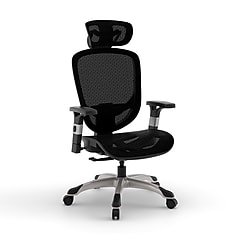
Price is $154.99, Regular price was $299.99, You save 48%
1
1
2
3
4
5
6
7
8
9
10
11
12
13
14
15
16
17
18
19
20
21
22
23
24
25
26
27
28
29
30
Over 30
















Office essentials for everyday efficiency
Comprehensive guides to help you select reliable ink, printers, paper, and more with confidence.
Page 1 of 2


Printer Buying Guide
Become an expert in printer types and capabilities to help you discover the ideal printer for your needs.

Copy Paper Buying Guide
Become an expert in types of printer paper to help you discover the right paper for your needs


Page 1 of 4

Price is $429.99
1
1
2
3
4
5
6
7
8
9
10
11
12
13
14
15
16
17
18
19
20
21
22
23
24
25
26
27
28
29
30
Over 30

Price is $82.69
1
1
2
3
4
5
6
7
8
9
10
11
12
13
14
15
16
17
18
19
20
21
22
23
24
25
26
27
28
29
30
Over 30
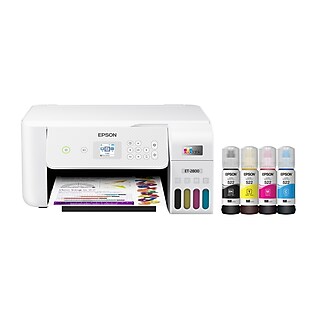
Price is $199.99, Regular price was $239.99, You save 16%
1
1
2
3
4
5
6
7
8
9
10
11
12
13
14
15
16
17
18
19
20
21
22
23
24
25
26
27
28
29
30
Over 30

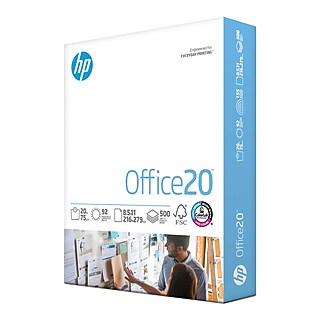
Price is $9.49
1
1
2
3
4
5
6
7
8
9
10
11
12
13
14
15
16
17
18
19
20
21
22
23
24
25
26
27
28
29
30
Over 30



Professional computer & laptop insights
Navigate specifications and performance needs with professional insights.
Page 1 of 1

Laptop Buying Guide
Find your perfect laptop with the ideal combination of performance, storage, and battery life to suit your needs.

AI Laptops & Desktops
Imagine a super-smart assistant on your computer, always helping you tackle tasks faster and smarter, making your day easier.

Build Your Own Computer
Build your perfect PC with our guide, featuring top choices for motherboards, memory, and storage solutions.

Page 1 of 3

No reviews yet
Price is $349.99
1
1
2
3
4
5
6
7
8
9
10
11
12
13
14
15
16
17
18
19
20
21
22
23
24
25
26
27
28
29
30
Over 30

No reviews yet
Price is $419.99
1
1
2
3
4
5
6
7
8
9
10
11
12
13
14
15
16
17
18
19
20
21
22
23
24
25
26
27
28
29
30
Over 30
No reviews yet
Price is $350.99
1
1
2
3
4
5
6
7
8
9
10
11
12
13
14
15
16
17
18
19
20
21
22
23
24
25
26
27
28
29
30
Over 30

No reviews yet
Price is $431.99
1
1
2
3
4
5
6
7
8
9
10
11
12
13
14
15
16
17
18
19
20
21
22
23
24
25
26
27
28
29
30
Over 30

No reviews yet
Price is $899.99
1
1
2
3
4
5
6
7
8
9
10
11
12
13
14
15
16
17
18
19
20
21
22
23
24
25
26
27
28
29
30
Over 30
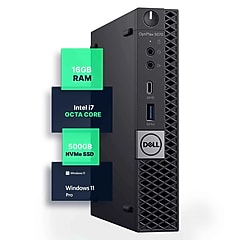
No reviews yet
Price is $509.99
1
1
2
3
4
5
6
7
8
9
10
11
12
13
14
15
16
17
18
19
20
21
22
23
24
25
26
27
28
29
30
Over 30

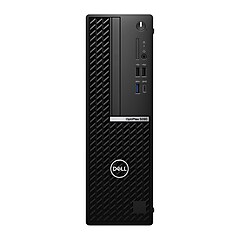


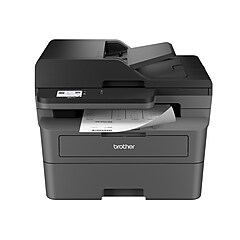


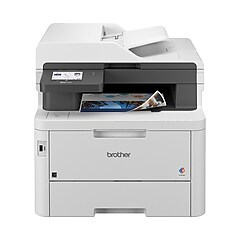

Page 1 of 3


Price is $49.99
1
1
2
3
4
5
6
7
8
9
10
11
12
13
14
15
16
17
18
19
20
21
22
23
24
25
26
27
28
29
30
Over 30


Price is $89.99
1
1
2
3
4
5
6
7
8
9
10
11
12
13
14
15
16
17
18
19
20
21
22
23
24
25
26
27
28
29
30
Over 30


Price is $18.99
1
1
2
3
4
5
6
7
8
9
10
11
12
13
14
15
16
17
18
19
20
21
22
23
24
25
26
27
28
29
30
Over 30


Price is $206.52
1
1
2
3
4
5
6
7
8
9
10
11
12
13
14
15
16
17
18
19
20
21
22
23
24
25
26
27
28
29
30
Over 30




Ergonomic and functional office furniture
Make well-informed decisions with guidance on choosing chairs, desks, and workspace solutions.
Page 1 of 1

Desk Solutions
Discover the perfect office desk tailored to your comfort and productivity needs, backed by Staples' expertise in desking solutions.

Office Chairs Buying Guide
Discover the perfect office chair tailored to your comfort and productivity needs, backed by Staples' expertise in office seating solutions.

Chairs Buying Guide
Learn about the wide range of chairs we offer, making us the #1 distributor of chairs to businesses, nationwide.

Page 1 of 4


Price is $419.99
1
1
2
3
4
5
6
7
8
9
10
11
12
13
14
15
16
17
18
19
20
21
22
23
24
25
26
27
28
29
30
Over 30

Price is $34.99, Regular price was $69.99, You save 50%
1
1
2
3
4
5
6
7
8
9
10
11
12
13
14
15
16
17
18
19
20
21
22
23
24
25
26
27
28
29
30
Over 30


Price is $159.99
1
1
2
3
4
5
6
7
8
9
10
11
12
13
14
15
16
17
18
19
20
21
22
23
24
25
26
27
28
29
30
Over 30


Price is $419.99
1
1
2
3
4
5
6
7
8
9
10
11
12
13
14
15
16
17
18
19
20
21
22
23
24
25
26
27
28
29
30
Over 30









Shop your way: online, in-store or on the go
Corporate social responsibility

Community
- When it comes to giving back to the community, we're all in. At Staples, our employees are passionate about getting personally involved in community efforts and they're always looking for more ways to reach out.

Sustainability
- Staples is focused on delivering more sustainable products and solutions for our customers and operating our business in a responsible way. Shop all sustainable products.

Inclusion and Diversity
- A culture that's welcoming to everybody fosters a positive work environment while driving growth and profitability.

Supplier Diversity Program
- At Staples, we believe diversity should be celebrated in every aspect of business. Our well-established Supplier Diversity Program creates opportunities to help diverse businesses grow and offers solutions to help our customers meet their diversity spend goals. Shop all businesses in our Supplier Diversity Program.