

The Hard Knocks of Hard Drive Installation
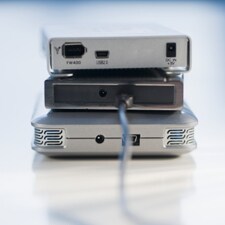
Installing a new hard drive can seem like a daunting task, but with the right guidance it can be done by just about anyone.
You don’t have to be an IT guru to install your own hard drive, but popping open the PC and doing your own work definitely carries some risks. Here are some basic steps to make installation easier, safer and more effective.
One thing to note: These are steps for adding a SATA drive, which will improve system performance and storage capacity. If you're using a PATA drive (also known as an IDE hard drive), which is an older style of hard drive, the process is slightly different.
- Get your tools ready. Most likely, you’ll only need a Phillips screwdriver or a medium flat-blade screwdriver. Check the screws on the case before starting.
- Ground yourself. To prevent electric shocks, consider wearing an antistatic wristband. Also, keep one hand on a metal part of the case if possible. Another safety precaution is to place the computer on a foam pad (these pads — which look like something you might slip under a sleeping bag while camping — help prevent electric shock).
- Power down your PC and unplug it from the wall. Wait about 10 to 15 seconds so the motherboard's capacitors can discharge. Then, remove the screws holding the sides of the case and very carefully slide the panels out of the way.
- If you’re replacing a drive, unplug the power and data cables and unscrew the drive. This will release it from its “cage.” Carefully remove it so that it doesn’t bump into other internal components.
- Put the new drive into the cage and secure it tightly with screws. Make sure there’s enough room around the cage so that air can flow freely. This will help ensure the drive will be adequately cooled when it’s running.
- Plug in the data cable to the motherboard on the first available SATA channel. The motherboard — the thin component with various plugs and diagrams — looks something like an aerial view of a city. The SATA channels are rectangular and resemble upside-down Lego blocks. Usually, they’re marked with “SATA1,” “SATA2” and “SATA3,” depending on the motherboard. If you’re replacing a drive, plug your new drive into “SATA1.” If you’re adding a drive, connect it to the next available channel.
- Plug in a power connector to the drive. This may come with the drive, or you could use the one from the drive you’re replacing. With some drives, the power connector is on the same cord as the data cable. Refer to your drive’s manual or specifications to determine the best configuration and proper placement for the power connector.
- Take a look around to make sure you’ve put everything back into place, including cables you might have moved. Then replace the sides of your case, plug in the PC and boot up the machine. The drive should be recognized, and you can double-check its status by using Device Manager in the Hardware folder of the Control Panel in Windows.
Like any task involving PC hardware, installing a drive takes focus and precision, so give yourself ample time. Also, be sure to have tech support numbers ready and back up your data before you start. Who knows? You could be on your way to being an IT guru after all.